
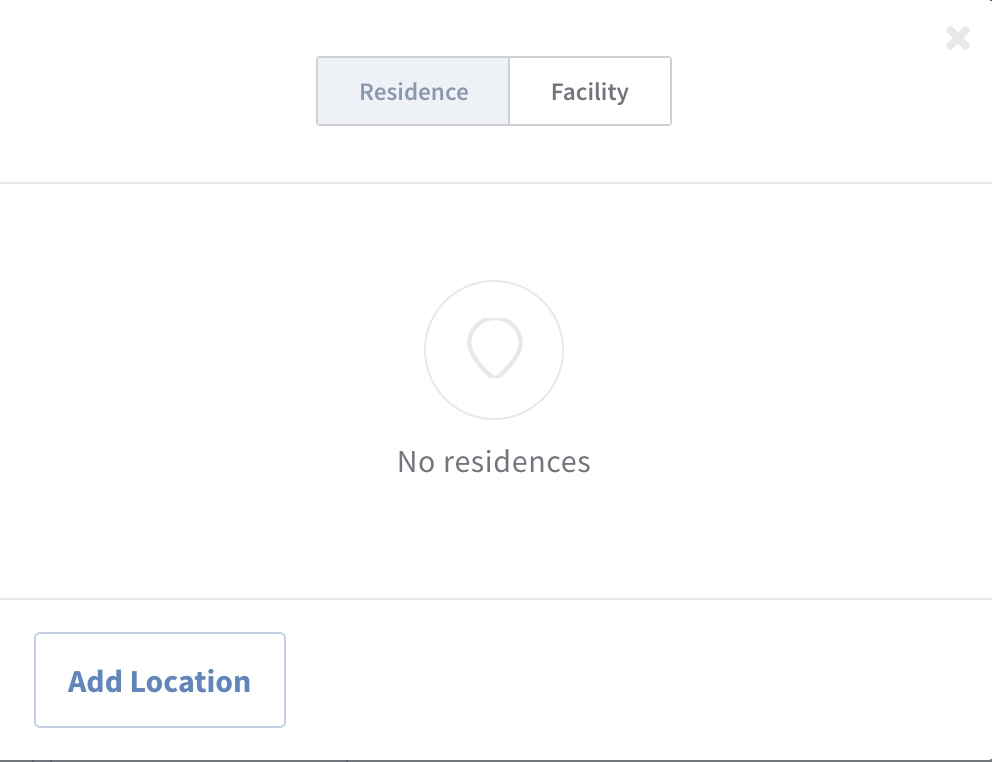
In order to create or add a new address, you will need to select Add Location
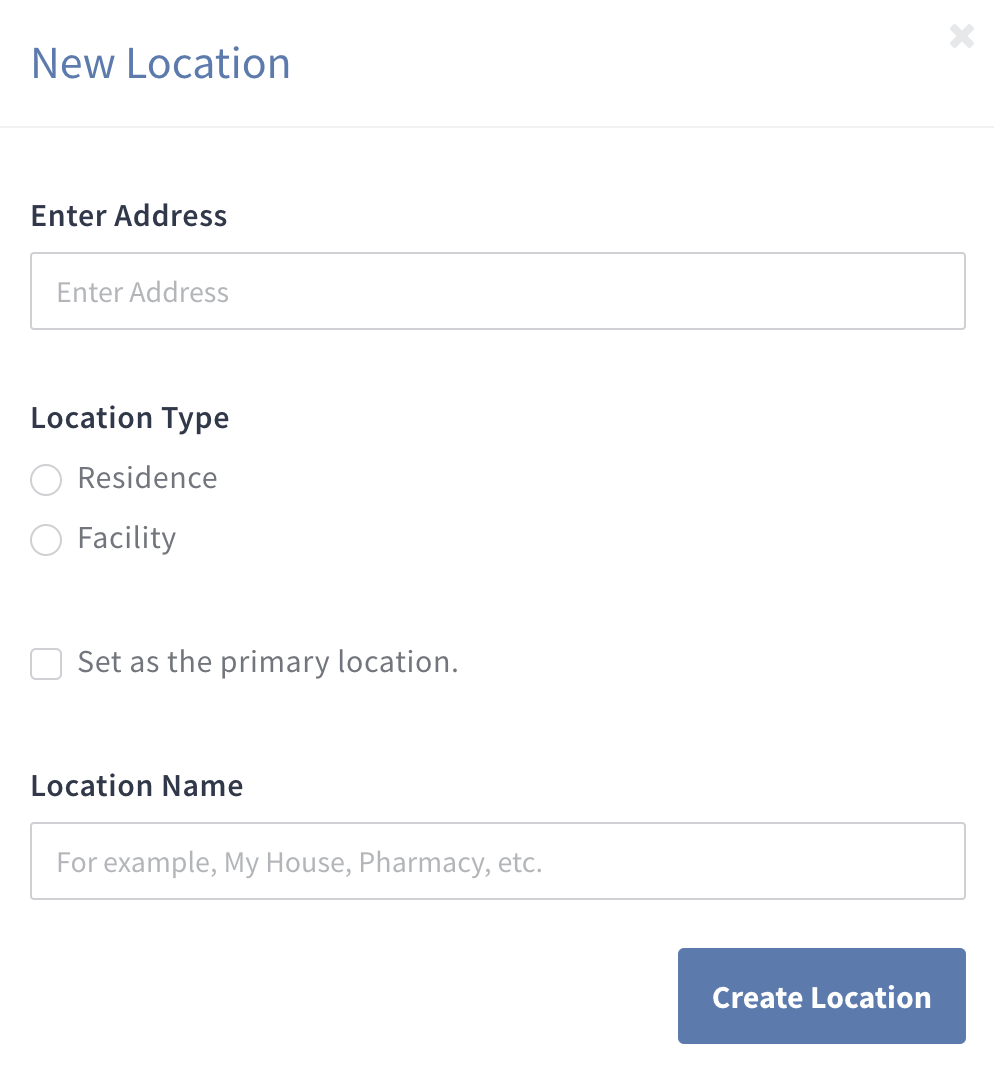
When the New Location selector opens, start by typing the address you are looking for. Our app is connected with Google Maps so address suggestions will be available in the drop down menu.
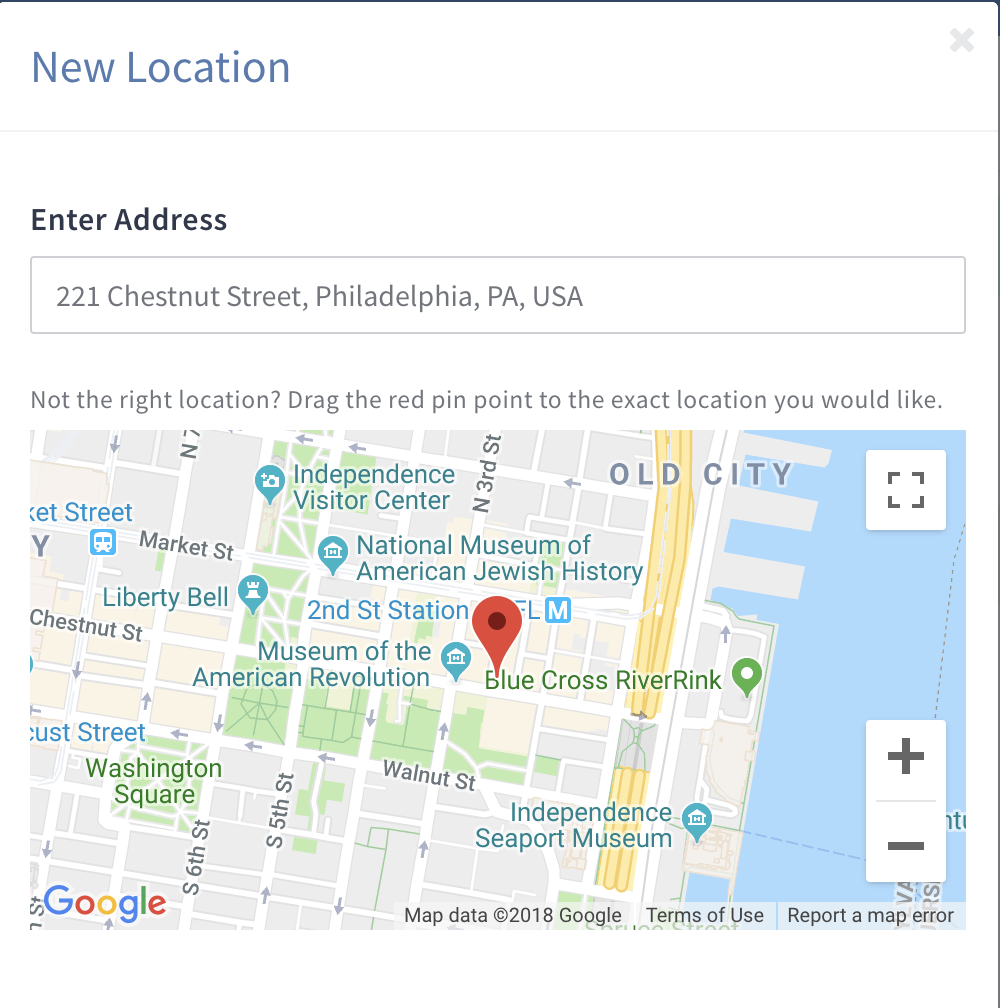
Once you complete the address, a map with a pin point at the address will appear. You can drag the red pin on the map to the proper location if the address pin is not in the exact place.
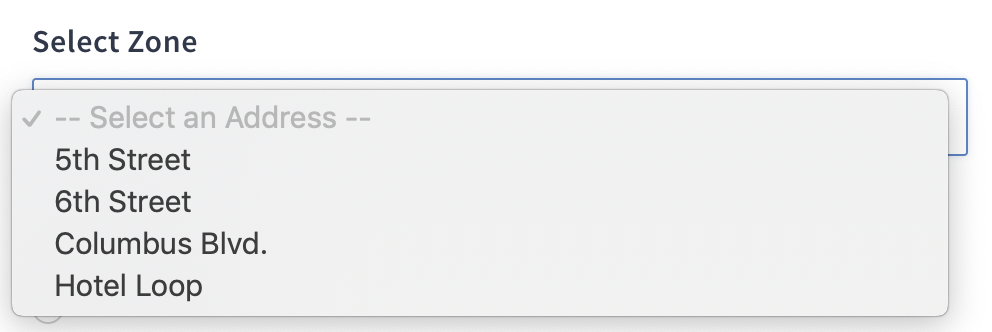
- If the address has a Venue Map where specific doors are mapped, select the proper zone location. If none of the Zone's match your desired location, do not select any zone. (Note: The pin on the map will update. Please confirm the pin location on the map)
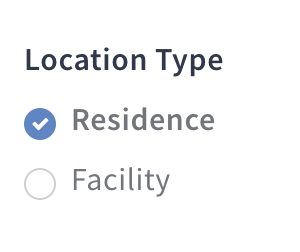
Select the Location Type as either Residence or Facility to sort the address correctly.
Check the box for Primary Location to set the location as the patient's primary location.
Enter a Location Name to name the address for easy selection on future trips

Select Create Location
Once the location is created, the location will be available for all future trips.