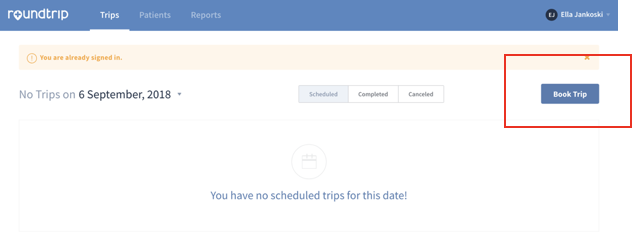
To start, click the Book Trip button in the top right corner of your Dashboard
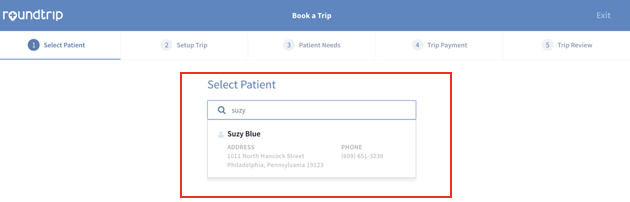
Step 1: Select Patient
- Search for your patient or Add a New Patient
Step 2: Setup Trip

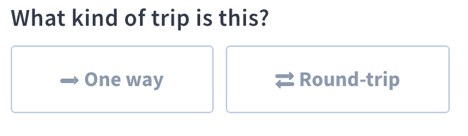
Select whether the trip is One Way or Round Trip
If the trip is recurring, select the Repeats checkbox
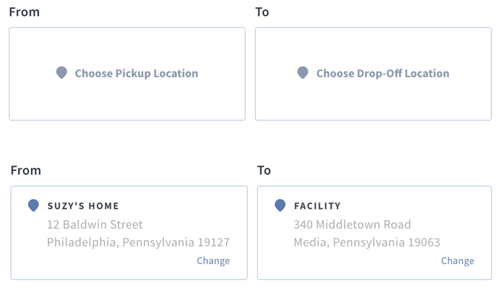
Select your Pickup and Drop Off Locations by clicking these boxes:
You can select either Drop off or Pickup time for each leg of the trip
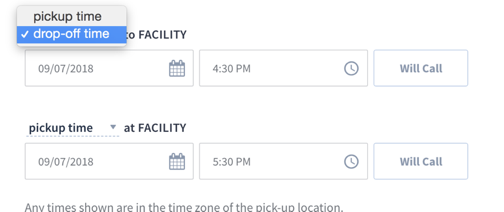
If you do not know when the patient will be returning home, you can select Will Call as the return leg. You can either update this when the patient is ready to go home or have the patient call the Navigation Center at (877) 396-8080 and Press 1 on the menu.
Step 3: Patient Needs

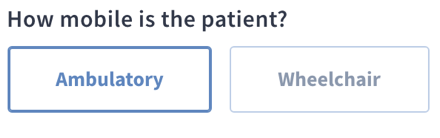
Select Ambulatory
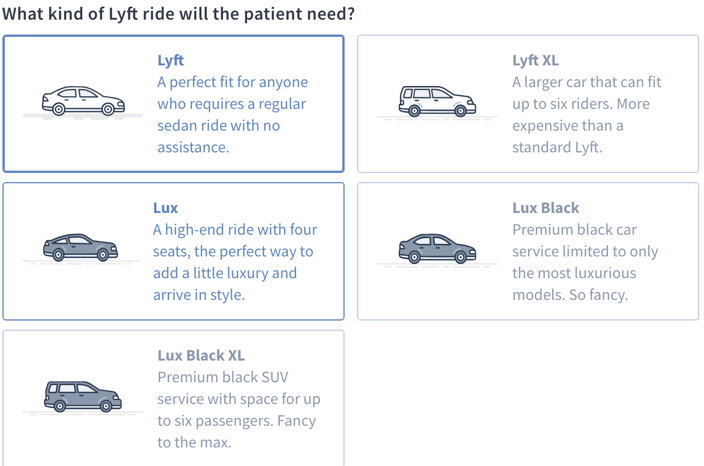
Select Lyft
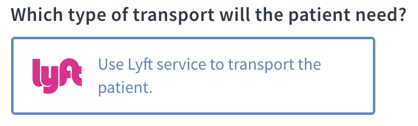
The default size Lyft vehicle is perfect for most patients. However, if you are transporting a bariatric patient or someone with a large family, the Lyft XL may be a better option
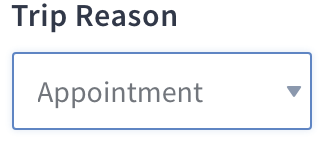
Indicate a trip reason
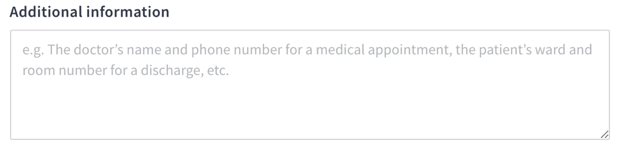
In the Addition Information field, enter any information you want RoundTrip to know about the trip. Do not list phone #s in this field. If you would like RoundTrip/Lyft to contact a certain phone number, enter it in the Patient Profile [see Add a Patient]
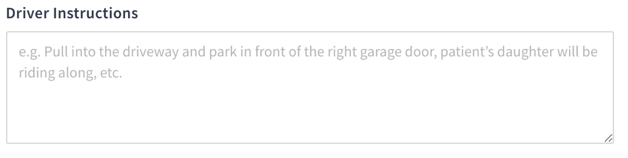
Enter Driver Instructions. These instructions will be texted directly to the Lyft driver. Do not request that drivers get out of the vehicle to assist patients as this is not a Lyft requirement.
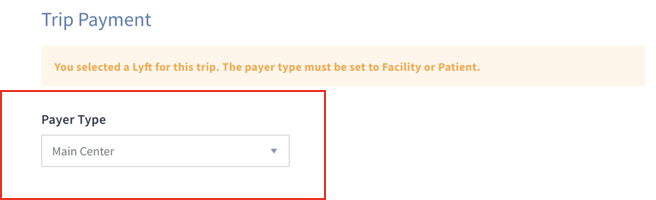
Step 4: Trip Payment

Select either Facility or Patient as the Payer Type